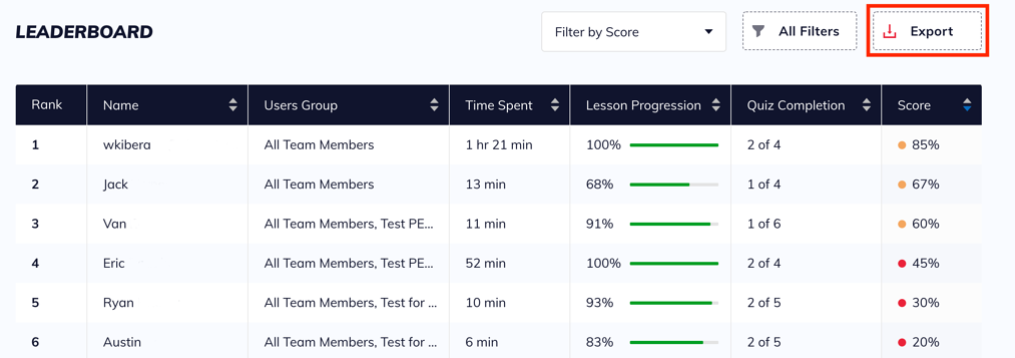
Use the Leaderboard to see how your users stack up against each other.
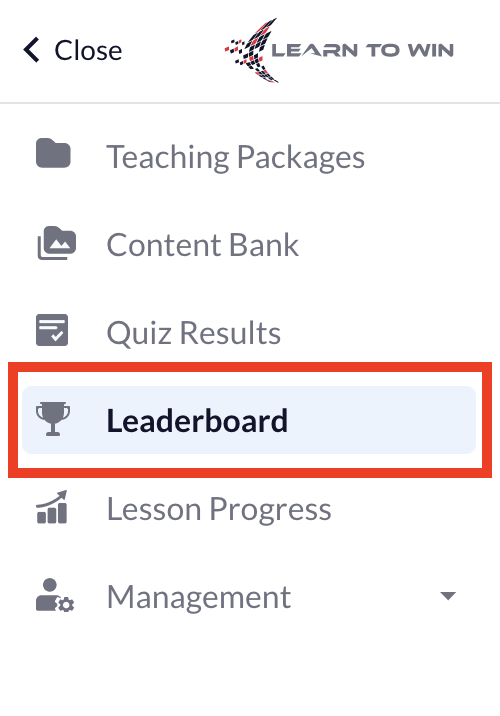
To begin, access the Leaderboard clicking Leaderboard on the lefthand taskbar.
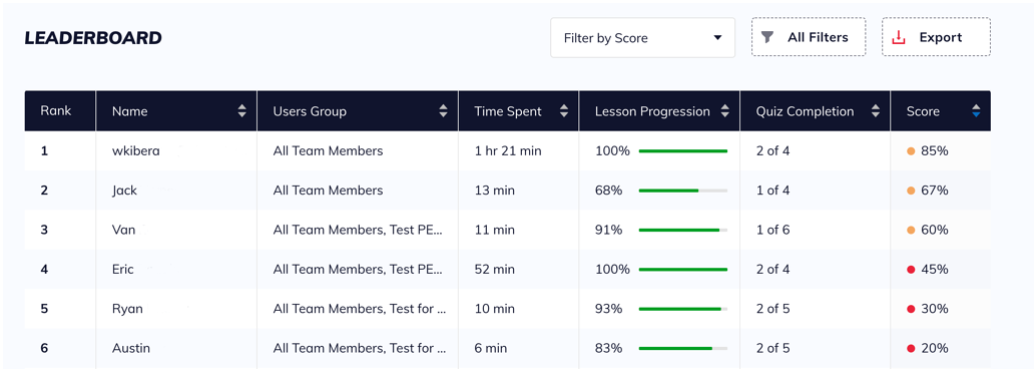
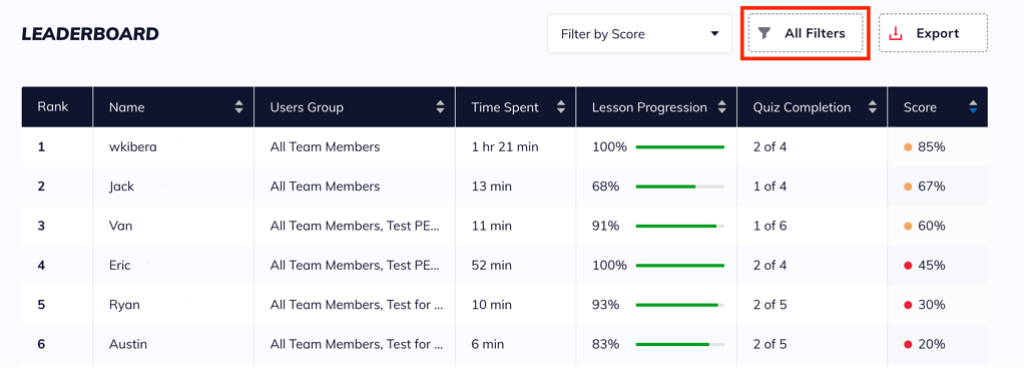
You will see a screen that looks like the following image:
Data Fields on the Leaderboard
This section will explain the different data fields, from left to right.
- The Rank indicates ranked position of users relative to others based on average quiz score.
- The Name is the name users wrote when creating their accounts.
- The Users Groups indicates which User Groups ("Position Groups" for Athletics users) each user is a member of.
- Time Spent indicates the number of hours and minutes users have spent on the platform.
- Lesson Progression indicates the percentage and scaled representation of the percentage of lessons completed out of the all-time total lessons assigned to each user (including lessons no longer visible to the user).
- Quiz Completion indicates the number of quizzes completed out of the total number of quizzes currently assigned to each user.
- Score indicates the overall average score of the quizzes the user has completed.
- Uncompleted quizzes will not be factored into the average score for users who have completed at least one quiz. If a user has completed zero quizzes, their average score will be 0%.
Filtering
Filter by Score
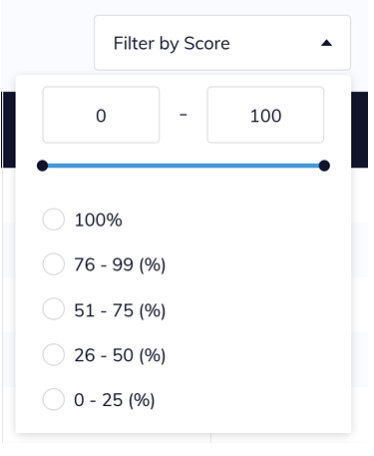
Click the Filter by Score box to view users that fall within a chosen parameter.
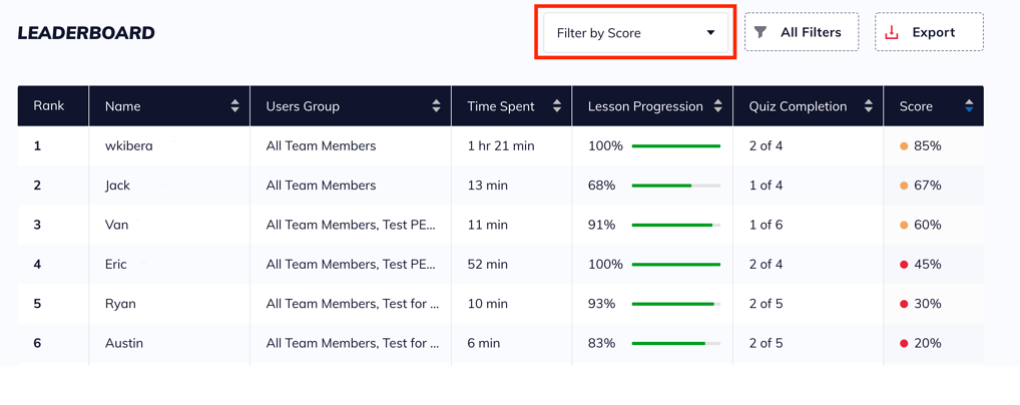
You can select one of the pre-set ranges or customize the range by entering numbers into the boxes or dragging the ends of the blue sliding scale.
Additional Filters
Click All Filters box to filter by User Name, User Group, or Score.
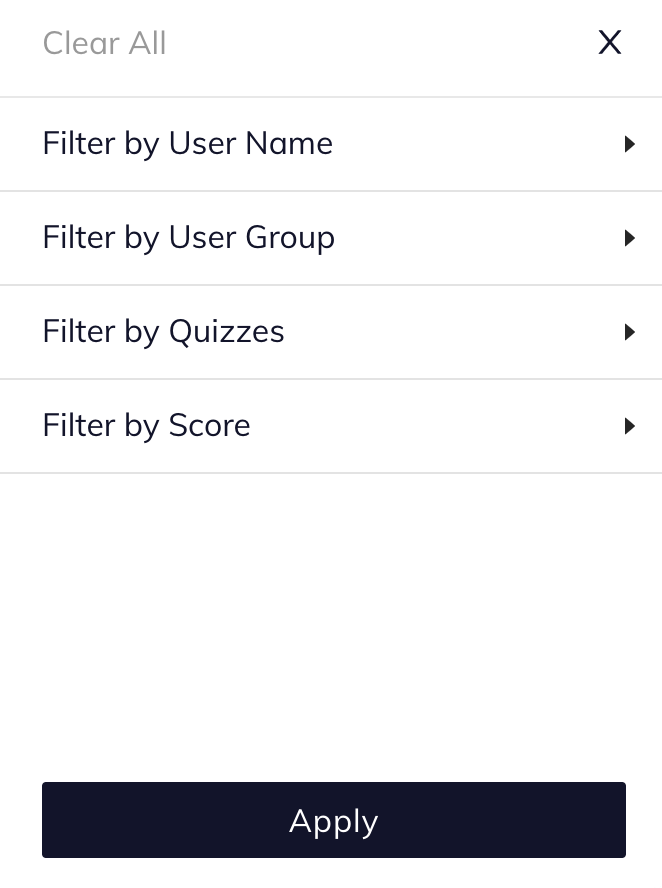
- Filtering by User Name allows you to search and select certain users to view on the Leaderboard.
- Filter by User Group allows you to select certain user groups ("position groups" if you are an Athletics user).
- Filter by Quizzes allows you to search and select certain quizzes to view on the Leaderboard.
- Filter by Score allows you to view users within a certain range.
- This filter is also available by clicking the Filter by Score box from the Leaderboard page.
Exporting
You can export the leaderboard as a CSV file. The export will reflect any filters applied before clicking the Export button. Instructors can view and analyze specific subsets of the Leaderboard. For example, you can export Leaderboard results for only a specific user group