Controlling which users have access to a certain lesson or quiz
To begin, create a user group.
Click on the Management in the left taskbar, and then select Manage User Groups.
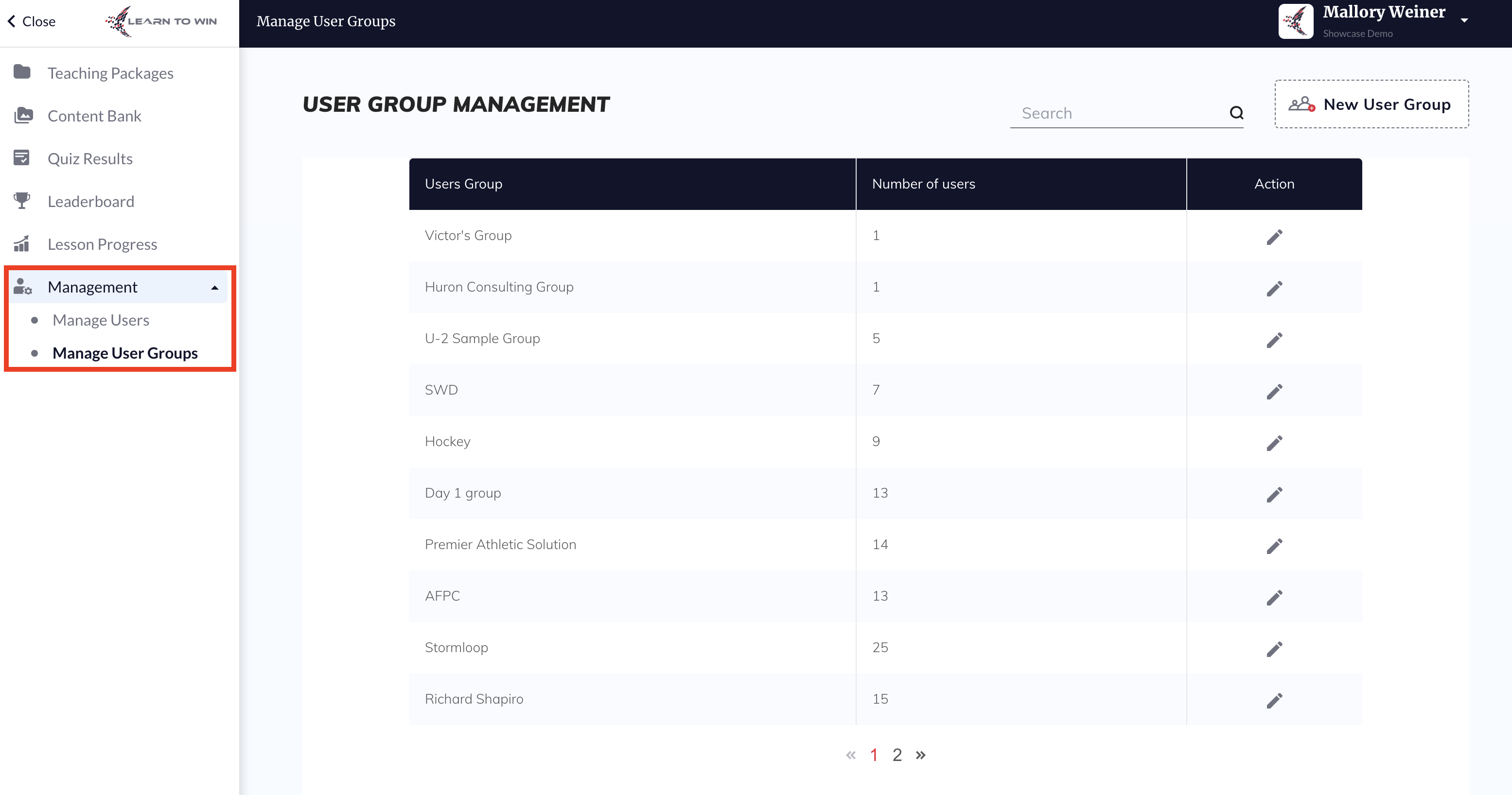
Click New User Group in the upper right corner. Name the group and select the users to be added.
- You can also add users to User Groups when creating their accounts. See this article for more information.
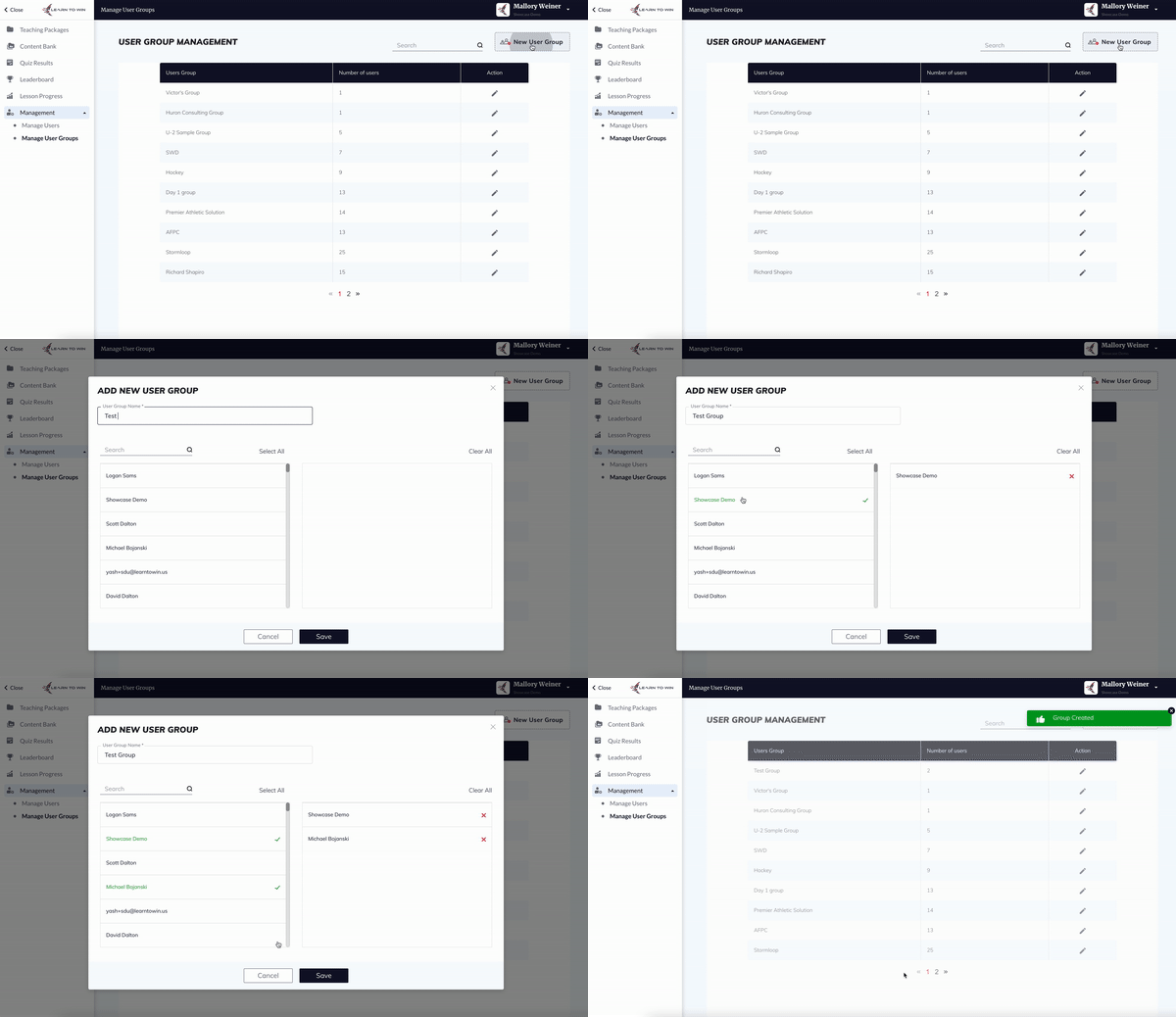
To assign a lesson or quiz to a specific user group, follow these steps:
Click the settings icon in the upper right corner of a lesson or quiz.
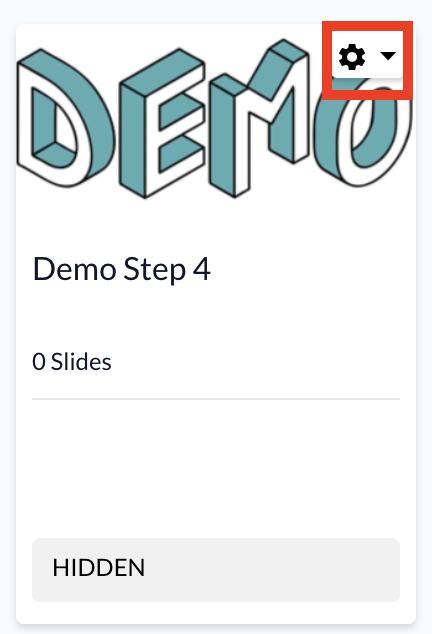
Select Edit Visibility from the drop-down menu, then select the user group you would like to make the lesson visible to.
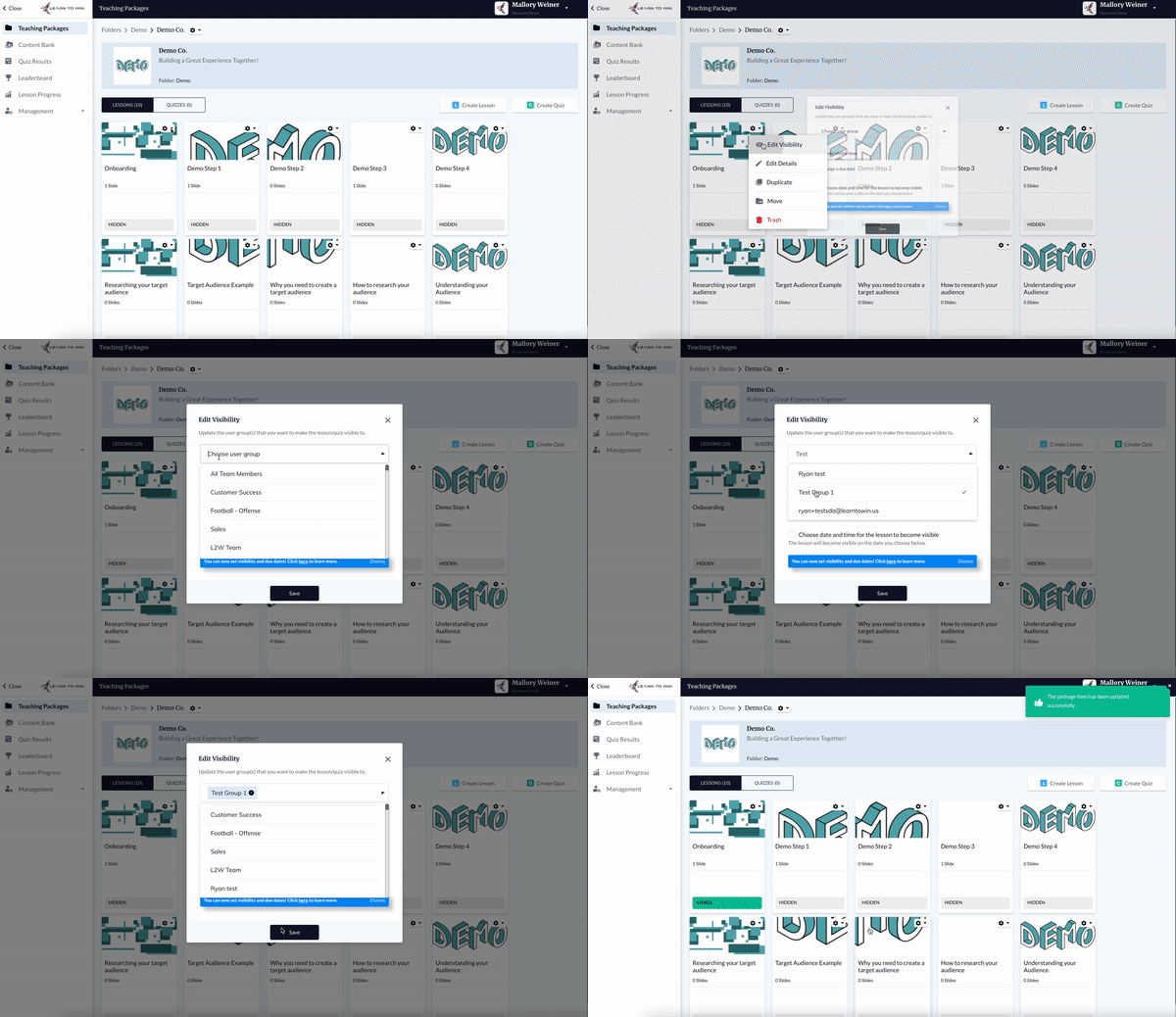
In this setting, you may also choose to Assign a due date or Choose a date and time for the lesson to become visible.
The lesson or quiz will automatically be visible after selecting a recipient user group.
Note: select All Team Members to make the lesson or quiz visible to all users.