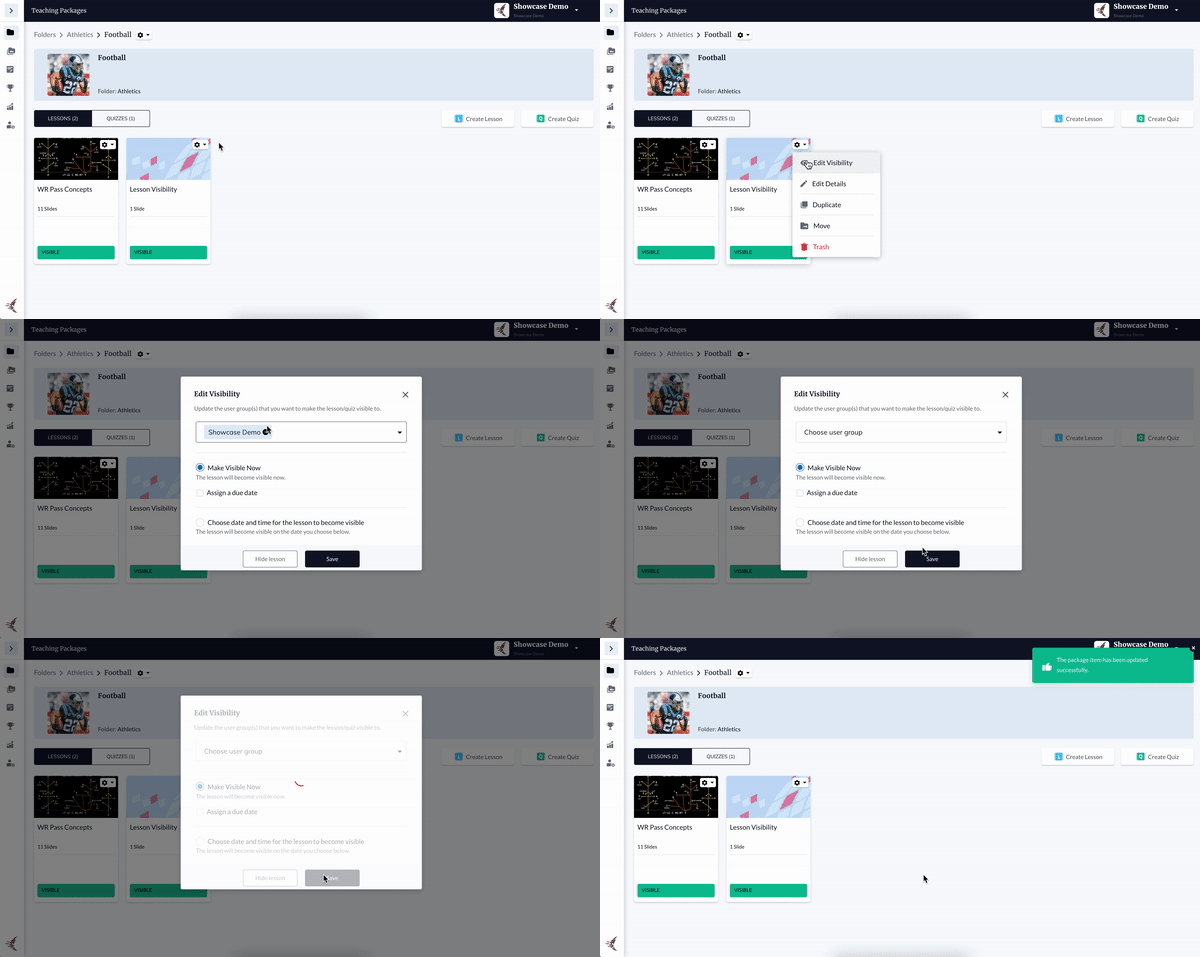
In this article, we'll cover the flow for publishing a lesson or quiz. Instructor can choose designated users or user groups, schedule publication dates, and schedule due dates. Instructors can also hide or remove users from a lesson at any point.
Scheduling Publication Dates
When publishing a lesson or quiz, admins can now set a date for publication in the future.
There are two ways to access this feature:
1 - From the Lesson/Quiz Workspace:
Click Make Visible in the upper right corner.
Select User Groups and/or Users to share with.
Click Next.
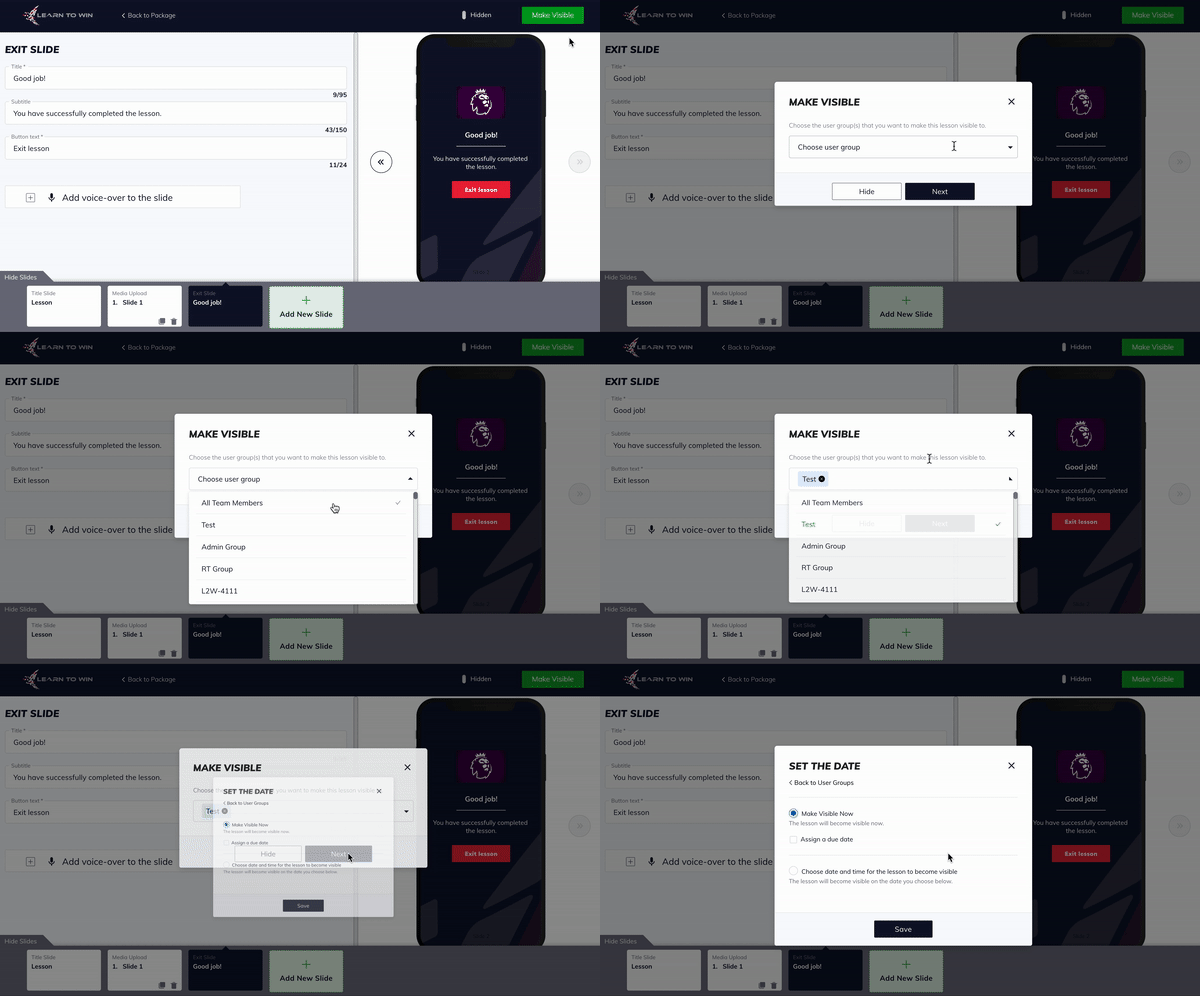
Check the option to Choose date and time for the lesson to become visible.
Select the date and time for the lesson or quiz to become visible.
Click Save.
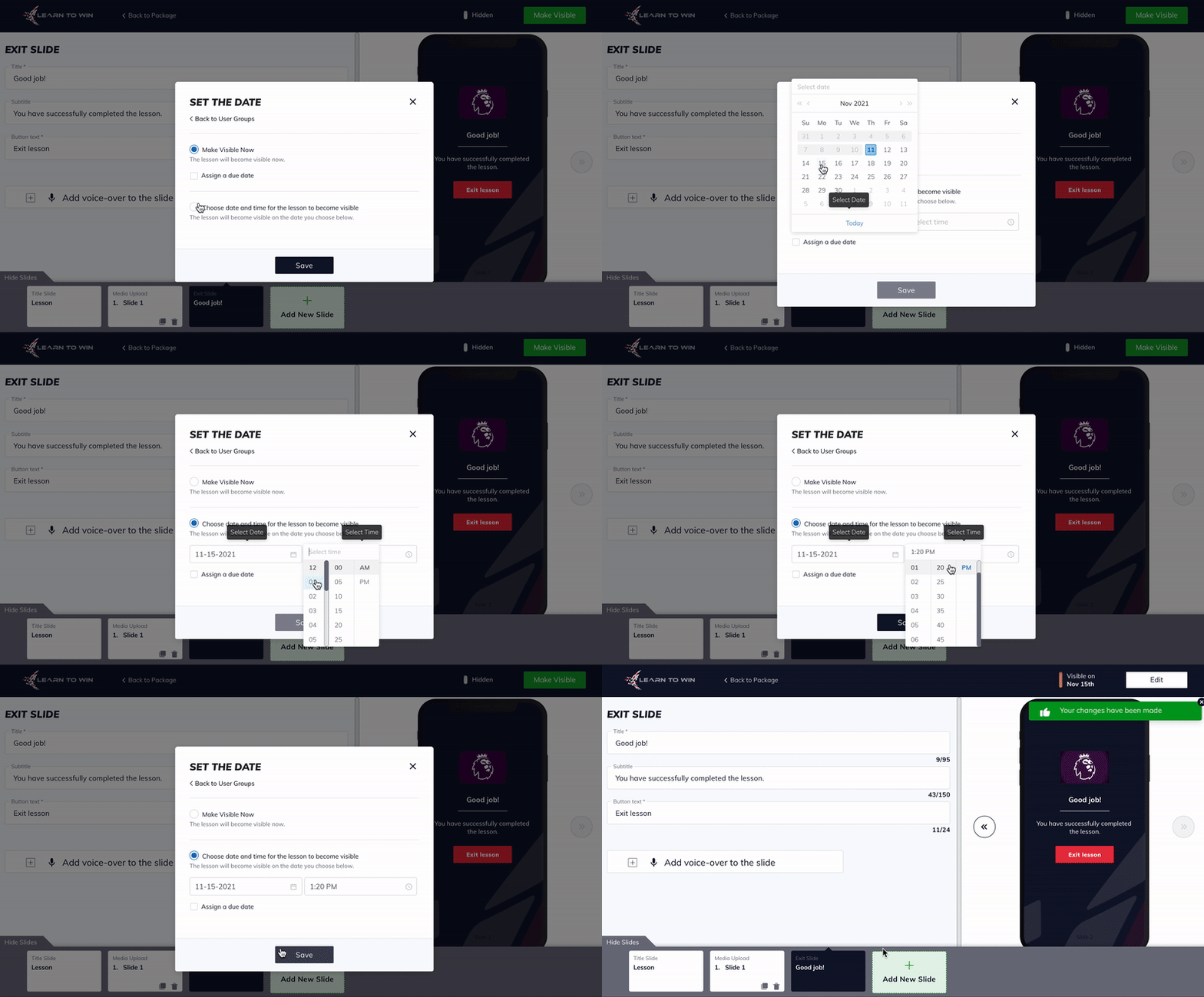
In the upper right corner of the Workspace, there will now be an orange tick mark with the visibility date next to it.
Upon returning to the Packages screen, you will see that the lesson or quiz is orange and has a status of “Scheduled.”
2 - From the Packages screen
Hover over the gear icon on the lesson or quiz and choose Edit Visibility.
Select User Groups and/or Users to share with.
Choose the option to Choose date and time for the lesson to become visible.
Select the date and time for the lesson or quiz to become visible.
Click Save.
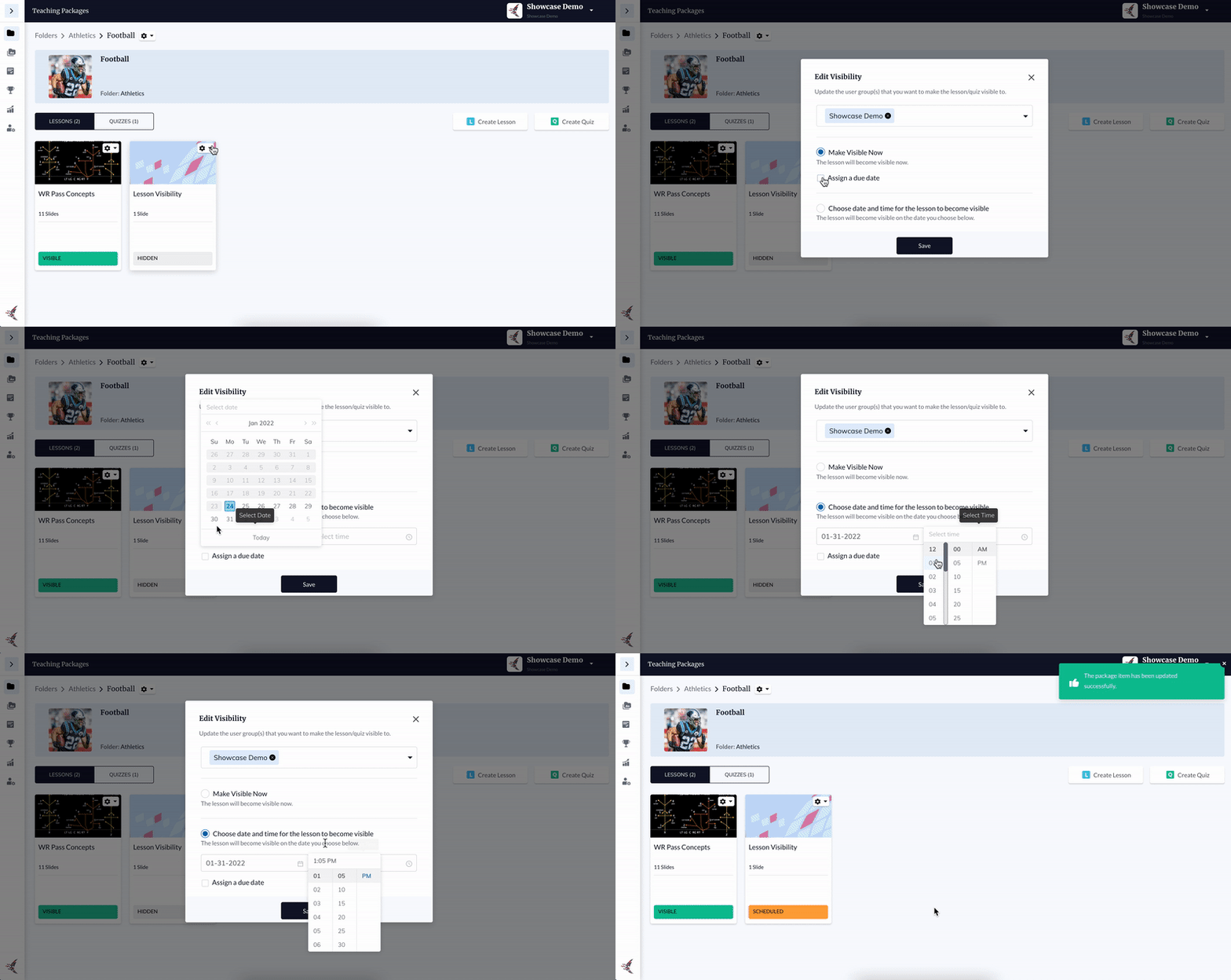
The lesson or quiz “card” in the Admin Web App will turn orange and display as “Scheduled.”
Scheduling FAQs
What if I want to double-check when it is scheduled to become visible? What time zone will I see?
- Option 1: Click on the gear icon > Edit Visibility > Next. The date and time the lesson/quiz is scheduled to become visible based on the current time of the admin viewing the card.
- Option 2: Click into lesson or quiz so that you are in the Workspace. In the top-right corner, there will be an orange tick mark with the visibility date.
What if I travel to a different time zone and schedule a lesson or quiz to become visible while I’m there? What happens?
The date & time the L/Q is scheduled to become visible is set based on your computer’s clock.
- If you are on Windows the default setting for “Date & Time” is that your computer’s time zone will not change as you travel. In that case, you will always see & set times based on your default time zone. If you have enabled the setting to “set time zone automatically” then you will see and set times based on the time zone you are in at that time.
- If your computer clock does update when you travel, then scheduled visibility dates and times will be set/shown based your current location.
Scheduling Due Dates
When publishing a lesson or quiz, admins can now schedule a due date for completion of a lesson or quiz.
There are two ways to access this feature:
1 - From the Lesson/Quiz Workspace:
Click Make Visible in the upper right corner.
Select User Groups and/or Users to share with.
Click Next.
Choose the option to Make visible now or the option to Choose date and time for the lesson to become visible.
Check the box that says Assign a Due Date.
Select a date and time for the lesson or quiz to be “due.”
Click Save.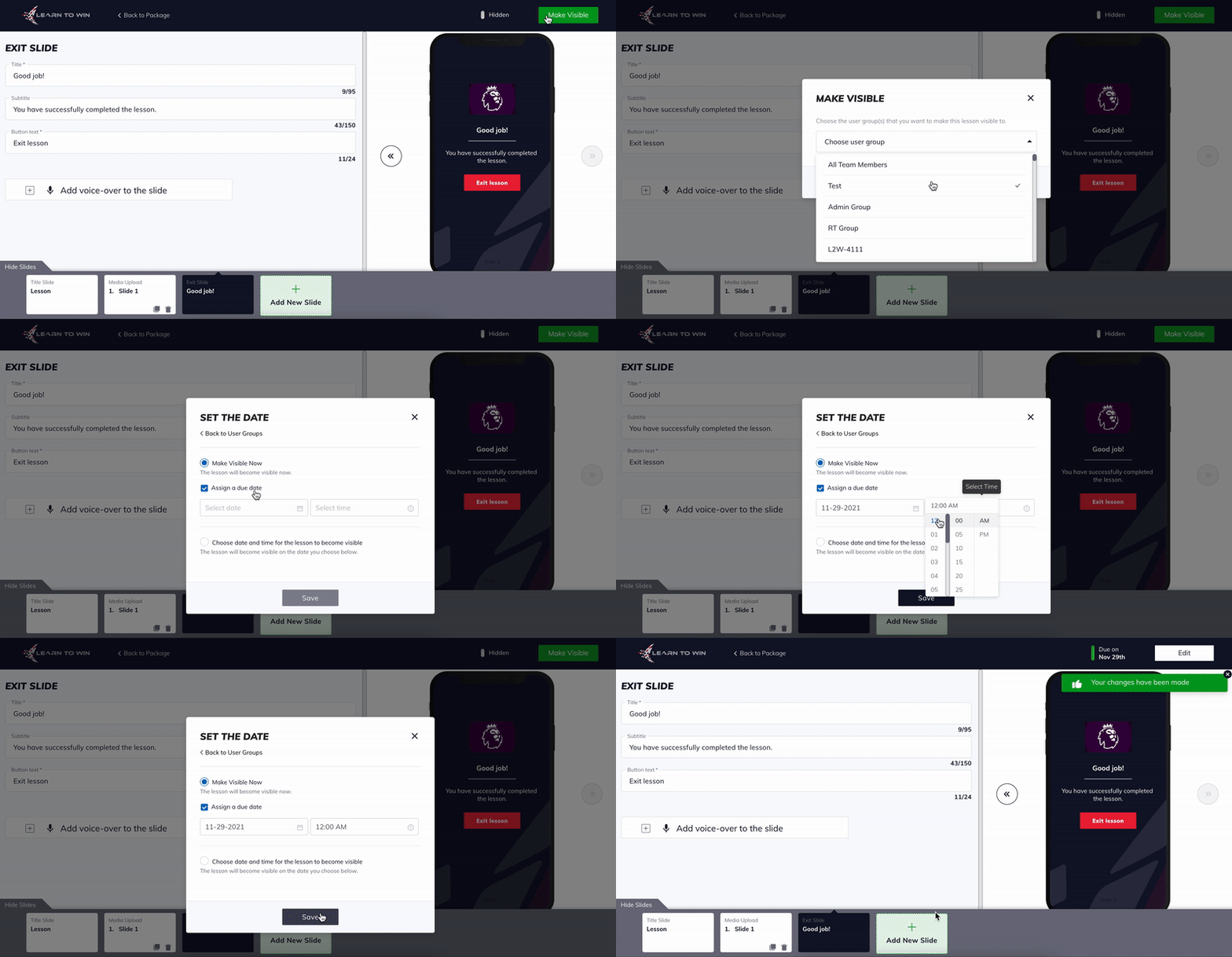
In the upper right corner of the Workspace, you should now see:
- A green tick mark with the due date next to it if you chose the option to “Make visible now”
- An orange tick mark with both the visibility date and the due date next to it if you chose the option to “Choose date and time for the lesson to become visible”
Upon returning to the Packages screen, you will see the lesson or qui is either green with a status of “Visible” or orange with a status of “Scheduled.”
2 - From the Packages screen
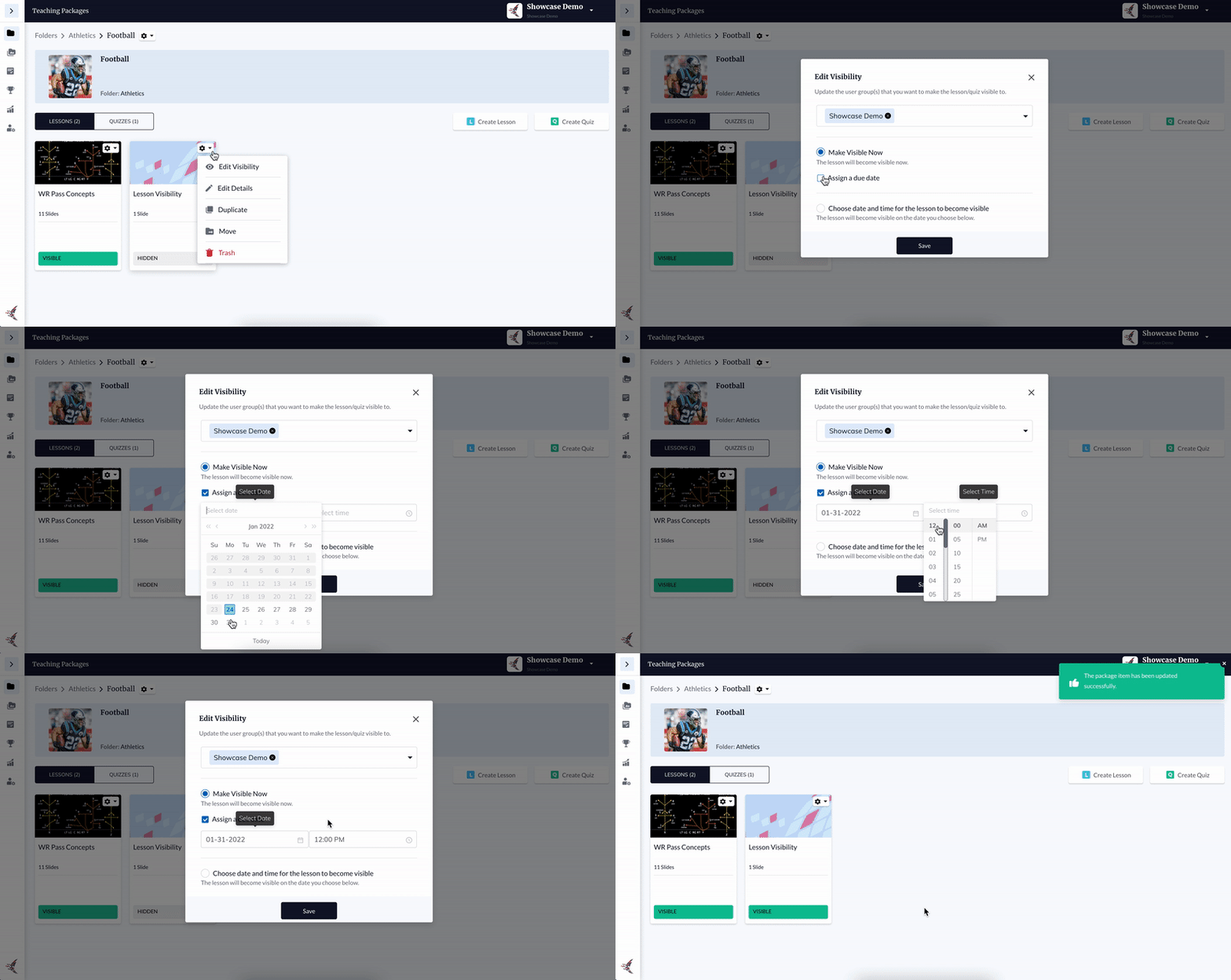
Hover over the “gear” icon on the lesson or quiz and then choose Edit Visibility.
Select the User Groups and/or Users to share with.
Click Next.
Choose the option to Make visible now or the option to Choose date and time for the lesson to become visible.
Check the box that says Assign a Due Date.
Select a date and time for the lesson or quiz to be “due.”
Click Save.
The L/Q will either be green with a status of “Visible” if you chose “Make visible now," or orange with a status of “Scheduled” if you selected “Choose date and time for the lesson to become visible.”
Due Date FAQs
What if I want to double-check the Due Date? What time zone will I see?
- Option 1: Click on the gear icon > Edit Visibility > Next. The due date will appear based on the admin's computer's current time.
- Option 2: Click into lesson or quiz so that you are in the Workspace. In the top-right corner, text will say:
- “Due on …” if due date & time has not passed
- “Previously due on…” if the due date & time is already past
What if I travel to a different time zone and schedule lesson or quizzes to to have a due date while I’m there? What happens?
The date & time the L/Q is scheduled to become visible is set based on your computer’s clock.
- If you are on Windows the default setting for “Date & Time” is that your computer’s time zone will not change as you travel. In that case, you will always see & set times based on your default time zone. If you have enabled the setting to “set time zone automatically” then you will see and set times based on the time zone you are in at that time.
- If your computer clock does update when you travel, then scheduled visibility dates and times will be set/shown based your current location.
What happens if a learner completes a Quiz past the due date?
The following will occur on the Leaderboard:
- “Time Spent” will increase and includes time spent on the past due quiz
- “Quiz Completion” will not increase, even if the learner completes the quiz after the due date
- Taking a past due quiz will
- “Score” will not increase
- Quizzes completed past the due date will count as a score of 0%. For example, if a learner has been assigned 2 Quizzes and they complete the first one on time with a score of 100%, their “Score” on the Leaderboard will read as be 50%... (100% + 0%) / 2 = 50%. If the learner completes their second quiz past the due date and gets another 100%, their “Score” on the Leaderboard will remain at 50% because their past due score would count as a 0%, and the average of their first quiz score (100%) and past due score (0% because it was late) averages out to 50%.
- On the Web App or Mobile App, the learner will see the Lesson/Quiz completed but the due date will show in red text.
What happens if a player completes a Lesson past the due date?
- On the Leaderboard, “Lesson Progression” will not increase, even if the learner completes the lesson after the due date
What happens if an instructor extends the due date beyond the original due date?
- Learners will be treated as if they had not completed the Lesson/Quiz past the due date which means that:
Leaderboard will update to Quiz Completion, Lesson Progression, or Score as if the learner had completed the Lesson/Quiz on time, meaning the metrics will increase
You can immediately remove a user or user group's access to a lesson or quiz.
- Hover over the lesson or quiz box and click the settings icon in the upper right corner.
- Click Edit. Add or remove user groups in the pop-up window.